
Turn your LearnDash quizzes into a real competitive exam.
Exam Mode assembles your existing LearnDash quizzes into one timed, sectioned paper with negative marking, fullscreen lockdown, and the same Save & Next / Mark for Review controls students see on SSC, banking, and UPSC-style CBT platforms.
Requirements
WordPress 6.x with LearnDash 4.x or 5.x. On LearnDash 5.x, set LearnDash’s Quiz Builder setting to Classic — Exam Mode reads questions through LearnDash’s classic quiz API.
What students and admins actually see
Real screenshots from a live Exam Mode paper on a production LearnDash site — the fullscreen exam screen students sit, and the settings screen you configure it from.
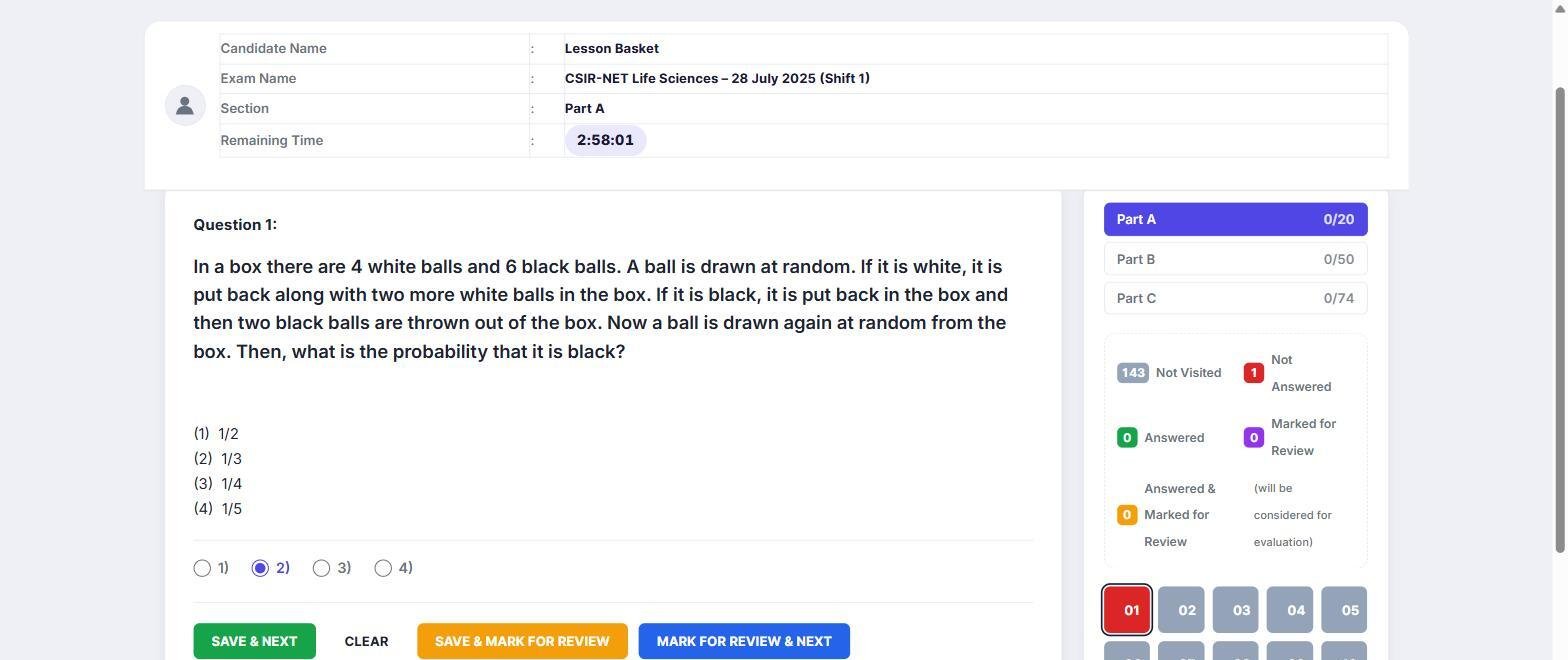
The exam screen students sit
Section tabs, one running timer, and the color-coded question navigator students already recognize from real CBT exams.
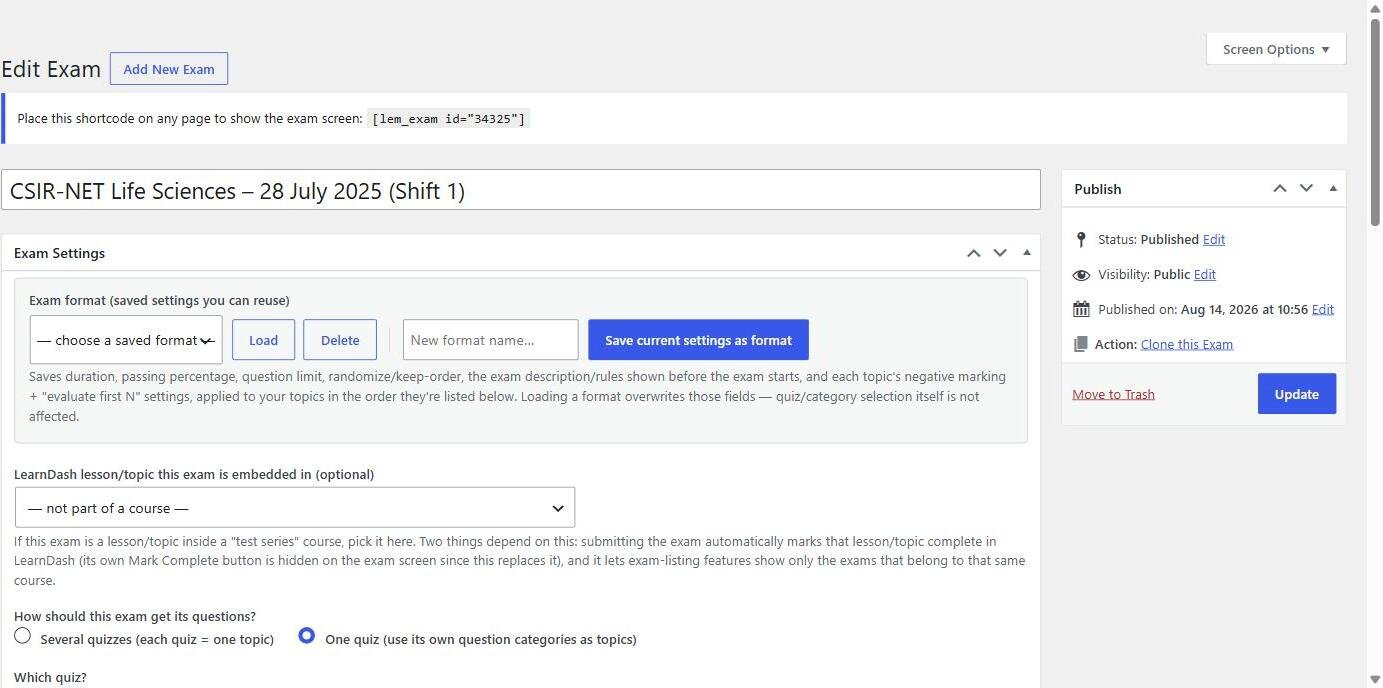
The settings screen you configure
Set timing, negative marking, and lockdown rules per exam from a plain WordPress settings screen — no separate app to learn.
Build the exam your way
Structure it however your question bank is already organized, then reuse the format next time.
Two ways to assemble
Pull several existing LearnDash quizzes together and each one becomes a topic tab, or take a single quiz and split its own question categories into topics instead — whichever matches how you already organize your question bank.
Reusable exam formats
Save any exam’s topic layout, timing, and marking scheme as a named, reusable “exam format” — build the structure once and load it again for the next exam instead of rebuilding it from scratch.
One overall timer
One overall exam duration covers the whole paper, set in minutes when you build the exam — students move between topic tabs freely within that single timer, the way most CBT platforms run a full-length paper.
Optional pre-exam screen
Show a description and rules page that students must move past before the timer starts, so instructions don’t eat into exam time.
Marking that matches the real exam
Negative marking and evaluation rules that mirror how the actual competitive papers score.
Per-topic negative marking
Negative marking set per topic, not just per exam — for example −0.25 for General Awareness and −0.5 for Quantitative Aptitude, matching how the real papers score differently by section.
Evaluate-first-N mode
“Evaluate first N answered” mode for exams that only grade a capped number of attempted questions per section — the format used by CSIR and UGC-NET style papers.
Randomized question order
Randomize question order per attempt, with an option to keep the same shuffled order across retakes of the same exam so repeat attempts stay comparable.
A real exam-day interface
The same navigator, color states, and lockdown behavior students already expect from CBT exams.
CBT-standard navigator
Color-coded question navigator with the CBT-standard states — answered, not answered, not visited, marked for review, answered & marked — plus Save & Next, Save & Mark for Review, and Mark for Review & Next controls.
Customizable color theme
Fully customizable 7-color theme (primary, primary dark, answered, not answered, not visited, marked, answered & marked) with an optional colorblind mode that adds a corner-flag to each navigator button so states don’t rely on color alone.
Fullscreen lockdown
Fullscreen lockdown during the exam — every exit from fullscreen is logged as a violation, and the exam auto-submits after 3 violations so students can’t casually tab away mid-paper.
Results students can trust
Scored instantly, broken down by topic and question, and benchmarked against classmates.
Instant results
Instant scored results on submit, with topic-wise and question-wise breakdowns and time spent per question.
Class average & percentile
Class average and percentile shown against other students who’ve attempted the same exam, once at least 2 attempts exist to compare against.
Score trend across retakes
A student’s own score trend across retakes of the same exam, so repeat attempts show whether they’re actually improving.
Per-question explanations
Shown after submission wherever you’ve added them — including inline diagrams, since question and answer content isn’t stripped of markup on display.
Fits into your existing course
Exam Mode plugs into LearnDash’s own completion, certificate, and progress data.
Embeds in lessons
Embed an exam directly inside a LearnDash lesson or topic, and submitting it automatically marks that lesson complete — no separate manual step for students or instructors.
Syncs with LearnDash data
Results sync into LearnDash’s own completion data, so certificates, course progress, and points/badges add-ons keep working exactly as they do for native LearnDash quizzes.
Simple shortcodes
Two shortcodes: [lem_exam id="X"] to place a specific exam anywhere, and [lem_history] to show a student their own past attempt history, expandable into the full score breakdown for each attempt.
Frequently asked questions
Is the timer per section or for the whole exam?
One timer covers the entire exam. Students can move between topic tabs freely within that overall time, the same way a full-length CBT mock test works.
Can negative marking be different for each topic?
Yes — set a different deduction per topic when you build the exam, for example a lighter penalty for General Awareness and a heavier one for Quantitative Aptitude.
Does this work with LearnDash certificates and points/badges add-ons?
Yes. Exam Mode writes its results into LearnDash’s native completion data, so anything that reads standard LearnDash quiz completion — certificates, course progress, points and badges — keeps working.
What happens if a student exits fullscreen during the exam?
It’s logged as a violation. After 3 violations, the exam auto-submits automatically.
Questions before you buy?
Email us or reach out through the contact page — happy to talk through whether Exam Mode fits your course setup.