
Moving an LMS is nerve-racking for one reason: students. They paid for access, they are halfway through courses, and some of them have months of quiz history. A migration that loses any of that turns into a week of support emails. This guide walks through moving a LearnDash site to Turgor Exam Engine step by step, in the order that keeps your live site safe.
Disclosure: we make Turgor Exam Engine, and we are not affiliated with LearnDash LLC. Check any claim about LearnDash against its own documentation.
The importer never changes or deletes anything in LearnDash. It reads LearnDash’s data and copies it into its own tables, so LearnDash keeps serving your site until the moment you choose to switch.
What comes across
| Comes across | Stays in LearnDash |
|---|---|
| Courses, lessons and topics, in their course order | Certificate designs and certificates already awarded |
| Quizzes and the full question bank, with answers and points | Assignments students uploaded, and their grades |
| Enrolments, including access granted through LearnDash groups | Essay answers and their hand-given marks |
| Lesson, topic and quiz completions | Group-level progress summaries |
| Quiz attempts, including earlier attempts a student has since retaken |
Your course, lesson, topic and quiz URLs stay the same. Turgor Exam Engine records LearnDash’s post types and URL structure and keeps serving them after LearnDash is switched off, and a URL check compares addresses before and after so existing links and search rankings don’t break.
Before you start
- Take a full backup of the site and database. The import doesn’t touch LearnDash data, but a backup is the rule for any change this size.
- Check the requirements: WordPress 6.7 or newer and PHP 8.1 or newer. LearnDash must still be active during the import.
- Try it on a staging copy first if your host offers one.
- Note which LearnDash add-ons you use. The migration screen lists them and deactivates them together with LearnDash at the end.
Step 1: Install Turgor Exam Engine
Install the free plugin from the download link (Plugins → Add New → Upload Plugin) and activate it. Add Turgor Exam Engine Pro too if you want the exam screen, bulk import and dashboards. Then open Turgor Exam Engine → Settings → Migration.
Step 2: Read the preflight report
Before anything is imported, the migration screen reads LearnDash’s own tables and gives a verdict: ready, ready with things worth knowing, or do not import yet. It lists what will come across with counts, what stays behind, and anything to settle first. The things it flags most often:
- Questions the engine can’t mark yet. All eight LearnDash question types import, but only single choice, multiple choice, fill in the blank and free answer are graded automatically. A quiz containing sorting, matrix sorting, assessment or essay questions is kept but won’t open until those questions are replaced.
- Lessons shared between courses (LearnDash’s Shared Course Steps). Every course keeps them, but a lesson has one set of topics here.
- Quiz pages with no questions behind them. These were already empty in LearnDash.
Step 3: Run the import
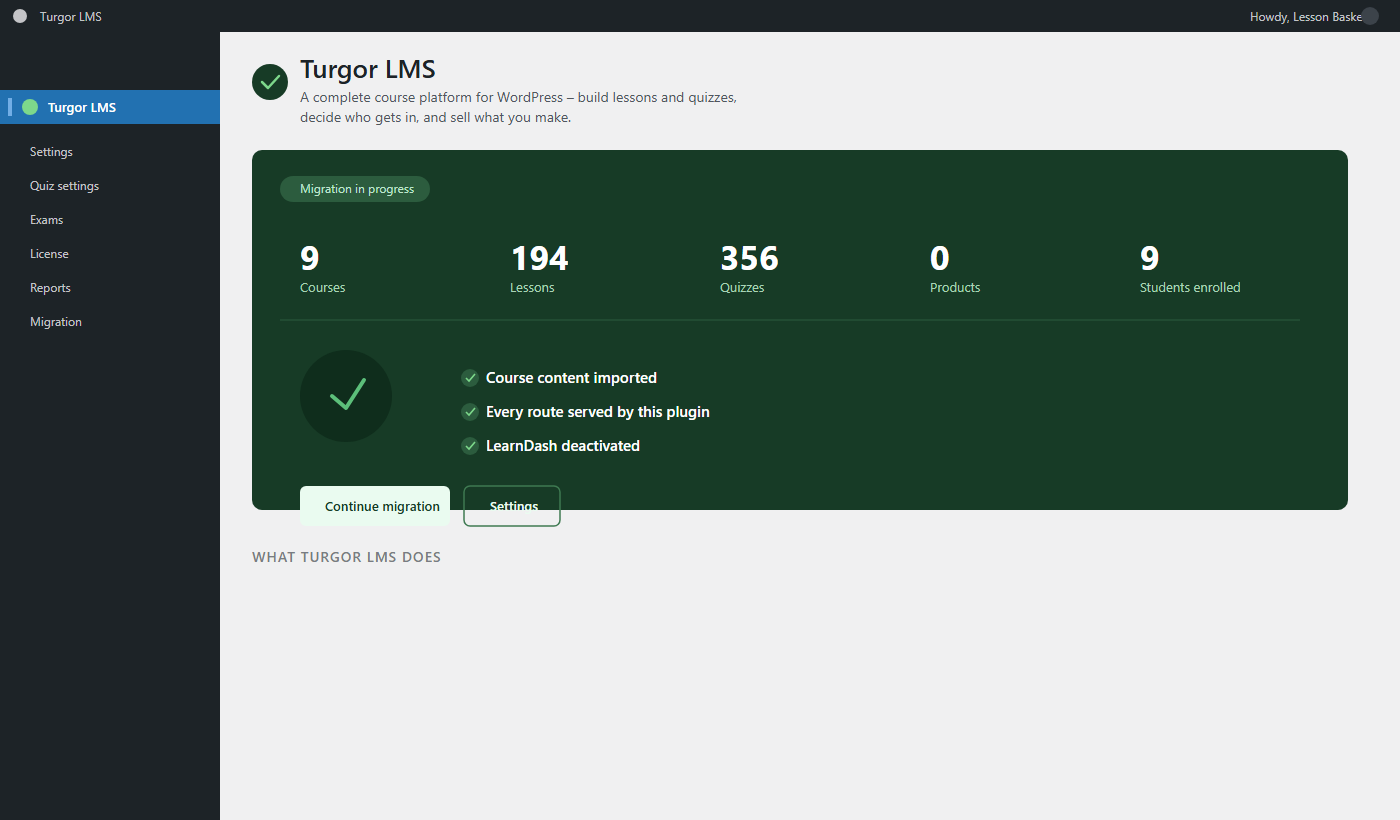
Press Import. The import runs in four stages, in this order: questions, then quizzes, then courses, then quiz attempts. Each stage works in small batches so it survives shared hosting, and a progress bar shows how far it has got. If the connection drops, press Resume and it carries on from where it stopped. Large banks are fine: the import was built on a real site with 27,035 questions.
Step 4: Verify before you switch
This is the step most migrations skip, and the reason this one exists. Under Advanced: tools & verification you can check the result against LearnDash while LearnDash is still there to compare with:
- Import check: course structure re-derived from LearnDash independently and compared.
- Question fidelity: each question’s text, options and, most importantly, which option is correct, compared with the original. Counts alone can balance while answers are wrong.
- Progress comparison: every student’s course progress compared with LearnDash’s own figure.
- Content and code checks: LearnDash shortcodes and Elementor widgets in your pages, and theme or plugin code that calls LearnDash functions, which would break once LearnDash is off.
- URL check: course, lesson and quiz addresses before and after.
Run these while LearnDash is active. Once it is switched off, its data is the only copy of the original, and the comparisons can’t be run again.
Step 5: Switch over
When the checks are clean, deactivate LearnDash from the migration screen. It switches off LearnDash and every add-on built for it in one step, because an add-on left running would call functions that no longer exist. Nothing is deleted; you can reactivate them from Plugins. If you prefer, switch individual pages over one at a time first.
Finally, “close the door” on re-importing. After cut-over you edit courses in Turgor Exam Engine, and a re-import from LearnDash would overwrite those edits with LearnDash’s old arrangement, so the importer locks itself.
Step 6: After the switch
- Open a few courses as a student: progress bars, completed lessons and quiz history should match what students saw before.
- Replace any LearnDash shortcodes or widgets the content check listed.
- Recreate certificate designs in Turgor Exam Engine Pro; new certificates are issued automatically on completion and emailed as a PDF.
- Re-point checkout: Pro sells courses through WooCommerce (one-time and subscriptions), bundles several courses into one Product, and can sell the same course in an Android app through Google Play Billing.
- Clear your page cache once.
Frequently asked questions
How long does a LearnDash migration take?
It depends mostly on the size of your question bank, and the import can be paused and resumed. Allow time for the verification step and for checking a few courses as a student; that is where the care goes.
Can I go back to LearnDash?
Until you cut over, yes: LearnDash is untouched and still serving the site. After cut-over, LearnDash and its add-ons can be reactivated from Plugins, but edits made in Turgor Exam Engine since then exist only there.
Will my students have to re-enrol or reset passwords?
No. Students are WordPress users either way, and their enrolments and progress are imported.
Do my certificates migrate?
No. Certificate designs and certificates already awarded stay in LearnDash. Pro issues certificates automatically from the switch onward.