
Typing questions into WordPress one at a time is fine for ten questions and impossible for ten thousand. If your question bank already lives in Excel, Word or Google Sheets, you can import it in one go. This guide shows the spreadsheet format Quiz Toolkit (part of Turgor Exam Engine Pro) reads, with an example you can copy.
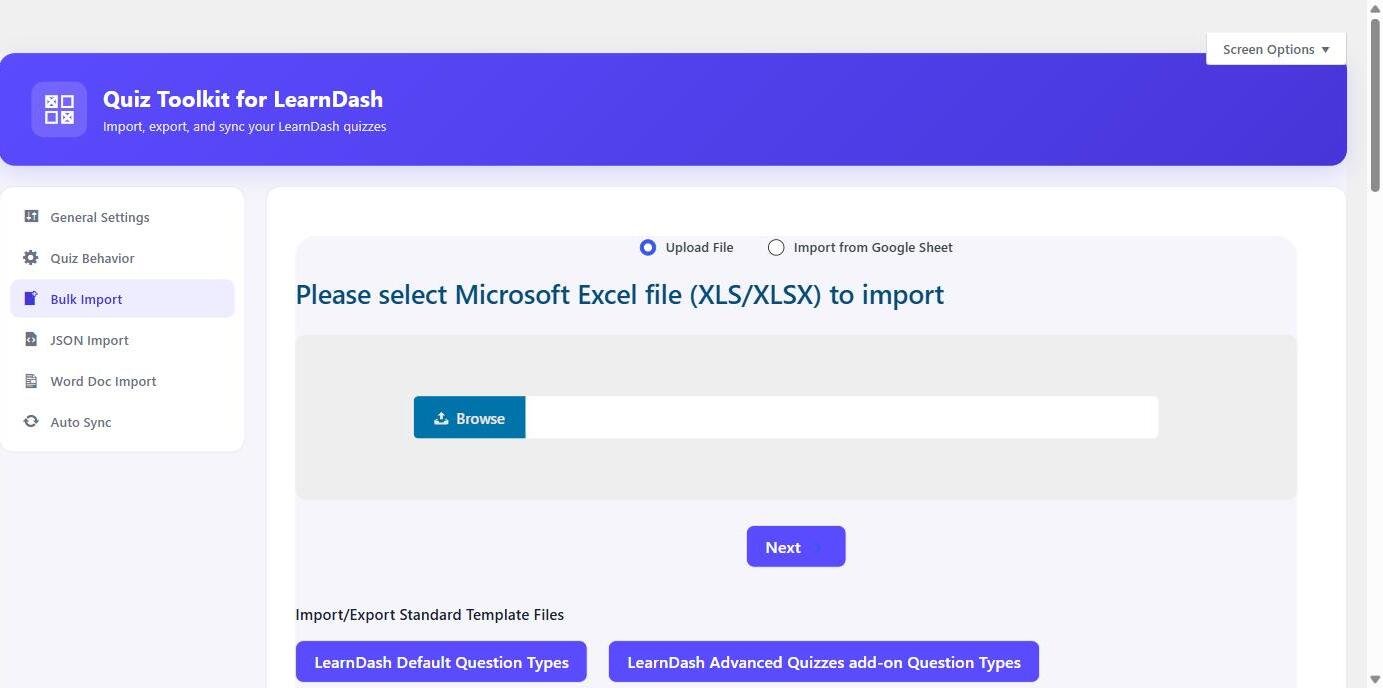
Formats you can import
- Excel and CSV: one row per question.
- Word (.docx): questions written in a simple document format.
- JSON: for exports from other systems.
- Google Sheets: connect a live sheet and re-sync it on a schedule, so edits in the sheet reach the quiz without re-uploading.
The spreadsheet columns
Row 1 holds the column names. Case and spaces don’t matter: “Question Text”, “question_text” and “QUESTION TEXT” are the same column. Row 2 holds the first question, and each row after that is one more question.
| Column | What goes in it | Example |
|---|---|---|
title | A short label for the question (shown in wp-admin) | Q1 Photosynthesis |
question | The question type: single or multiple | single |
question_text | What the student reads; LaTeX allowed | Which pigment absorbs red light? |
total_point | Marks for a correct answer | 2 |
negative_points | Penalty for a wrong answer, as a positive number (optional) | 0.5 |
category | The section; becomes a topic tab in exams | Part B |
answer_1 … answer_N | The options | Chlorophyll a |
answer | Which option is correct: 2, or 1|3 for several | 1 |
message_with_correct_answer | The explanation shown in the review | Chlorophyll a peaks at 430 and 662 nm. |
hint | Optional hint |
Instead of the answer column you can mark each option with correct_1 … correct_N (yes/no), and give per-option marks with point_1 … point_N. Files that write answer1 without the underscore import too.
Step by step
- Build the sheet with the columns above, one question per row.
- In wp-admin open Addons → Quiz Toolkit and choose Import a file (or connect a Google Sheet).
- Pick the quiz the questions go into, or create one.
- Upload, and read the result message before you leave the screen.
- Open the quiz and sit it once yourself before students do.
Tips from real imports
- Keep one paper per file. It makes re-importing a corrected paper simple.
- Put the section in
category; exams use it to build the section tabs and per-section scores. - Write maths as LaTeX, for example
\(x^2 + y^2\). It renders through MathJax. - Diagrams: upload them to the Media Library and add them to the question alongside its text.
- Export a quiz once to see the exact format the importer round-trips.
Importing 500 questions without surprises
A big paper is where small mistakes multiply. Prepare the sheet carefully, then load it in stages:
- Put every question for the paper in a single sheet.
- Write the explanation now. Students value it more than the question.
- Tag each question by topic and difficulty, so you can build tests from them later.
- Import 10 questions as a trial, open them and check the text, options and correct answer.
- For maths, physics or chemistry, check five questions with formulas or images on a phone before you load the rest.
- Fix the sheet, re-import, then load the full set.
Quality checks before students see it
- Duplicate questions
- Two options that are identical
- A correct answer that does not match any option
- Blank explanations
- Wrong answer keys: have a second person check a sample of 20
Keep the spreadsheet as your master copy
Treat the sheet as the source of truth. If you fix a question only in WordPress, re-importing or re-syncing the sheet can bring the old version back. Fix it in the sheet, then import again.
Keeping one bank tagged by topic also lets you build a chapter test, a section test and a full mock from the same questions.
Importing from LearnDash instead?
If your questions are already in LearnDash, you don’t need a spreadsheet: the LearnDash import brings the whole question bank across with answers and points. See how to migrate from LearnDash.
Frequently asked questions
Can I import questions with images?
Yes. Upload the images to the Media Library and add them to the question alongside its text. A question needs some text as well as the image.
Can I update questions after importing?
Yes. Edit them in wp-admin, or keep the bank in a Google Sheet and let it re-sync.
Is there a limit on how many questions I can import?
No fixed limit. Imports run in batches so large files don’t time out on shared hosting.
Related guide: Quiz Toolkit documentation